

Recently I’ve came accross this Crochet Charts by Stitch Works Software, a free software that helps to draw out the crochet chart.
There are two ways of recording your crochet patterns: either by writeup in abbreviation manner (For example, Row 1: ch 1, 2sc on next st, 1 sc for next 5 sc, dec, etc) or by crochet charting. I read crochet patterns in either ways and like both ways of recording crochet patterns. I do not know how to draw out crochet patterns. Since young, I like to read crochet patterns from Japanese crochet books/magazine. I do not know how to read Japanese words (Google Translate was not ‘born’ during that time or I’m not aware of the Translate app :P). It always amaze me that through easy understand charting, I can figure out the steps to make that cute Amigurumi.
I have been looking for such software apps for quite sometime, and managed to came across & found it! Thanks to the creator of the apps that I have finally use this Crochet chart app to create the crochet pattern, as show below:
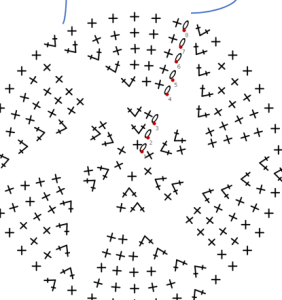
Start with Magical Loop
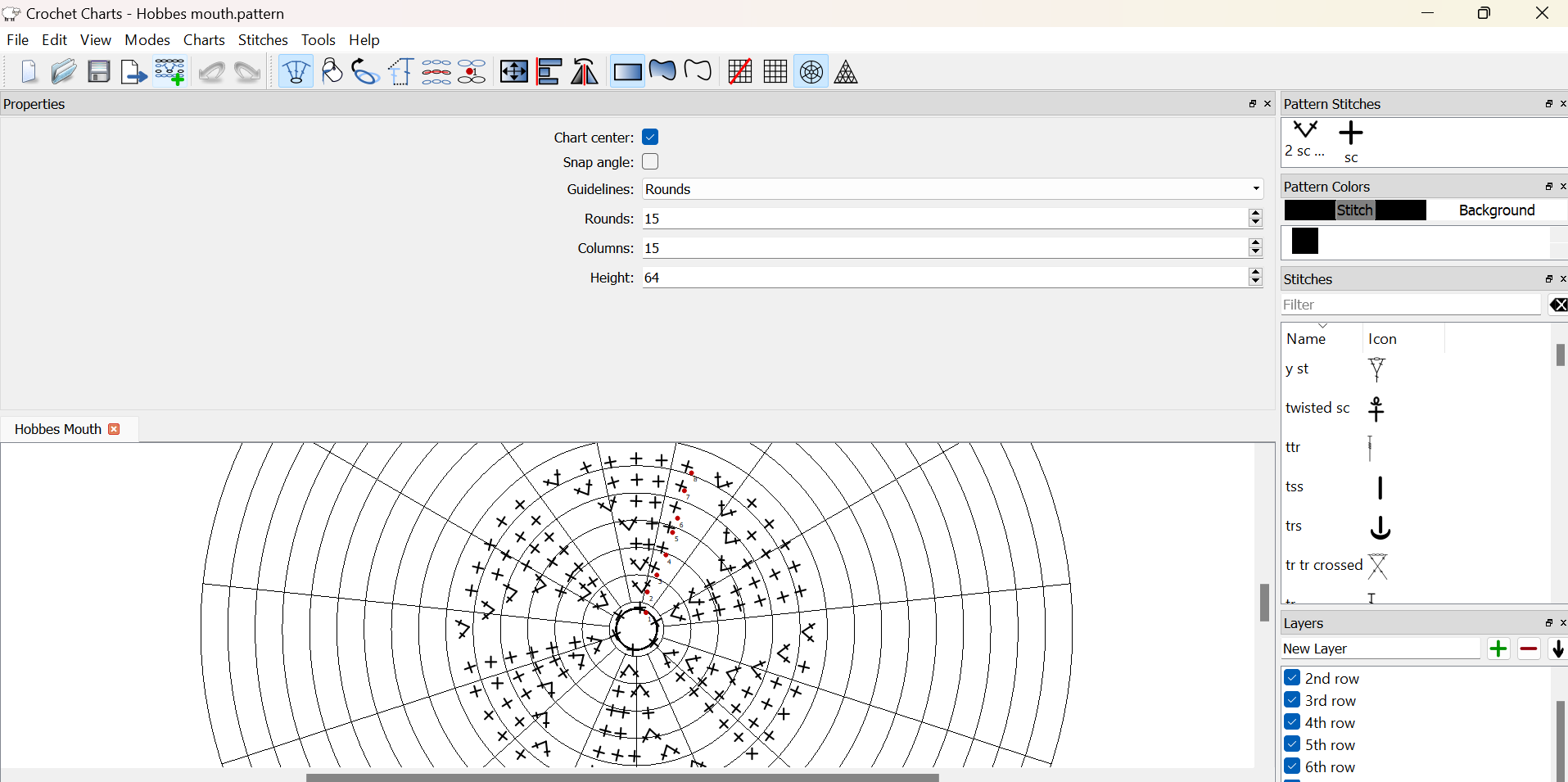
Crochet Charts
It took me quite a while to figure out how to use the software. However, the learning did pay off and now I’m able to create all kinds of pattern chart I want to have.
The Crochet Charts software comes with An official Crochet chart User Guide in pdf that includes how to install the software and a Quick guide to making a chart. Logically I would think to have this Installation Chapter download together with the installaiton kit. If I encountered issue during installation, I don’t think I will be refering to this installation section as the pdf file can only retrieve by clicking on the Help from the Tool bar after installation completed. Perhaps there are other means to refer to this installation that I am not aware of.
I like the Quick guide chapter as it offers a simple workflow steps to generate a simple crochet chart to get you familiarize with the software. You can then click on the URL link that brings you to the chapter that explain the steps in details.
I would like to share some of the findings after I’ve tried the software for weeks:
- I like to use the grid to guide meto start creating stitch from scratch. The grid auto place the stitch in the nearest cross grid position. Turns off the grid if you want to position the stitch otherwise. I define the columns of the grid to the maximum stitch a row/round that I will be making . I define the rounds/rows of the grid to the same number of rounds/rows of the pattern I will be making. The height will helps you guage the sparation of each round/rows.
- I have to always remember to select the pattern under the pattern Stitches dock (default at top right hand corne) before you reselect the created pattern stitch for edit. it will change the current stitch to the selected stitch pattern highlighted under the Pattern Stitches Dock. However, it will be a feature for you to change the sitich type if you copy a row of pattern from the previoius creation for futher enhancement.
- I prefer to use keyboard up/down/left/right keysto position the stitch once the stitch has inserted by using the left click on the mouse. The dragging of the stitch using left click mouse to position is somehow sluggish and may not work at times. Especially when the stich has position on a turn on grid point. You can only repostion using keyboard up/down/left/right keys.
- Use the Toolbar Icons to easily switch to different modes: Stitch Edit, Rotation Edit, Color Edit, Scale Edit, Row Edit. I used the first two modes quite often. Once I have created the whole pattern, then I start to use Row Edit to create the rows. The chart will show the rows in alternate colour: Black and blue. This will helps to differentiate the rows, especially in the round patterns.
- Click on the Save button frequently. The software has some bugs somewhere that may hang at times. My guess is there could be some bugs at the add and edit rows modes. It seems to hang often when I edit the rows.
- The software do not have a text mode for me to add in text. To overcome this, I export the software in .png format then use Microsoft Powerpoint to upload the image for further editing. I can also use Powerpoint toolset to add in other indicators like drawing arrows. add dotted lines and points as shown below:
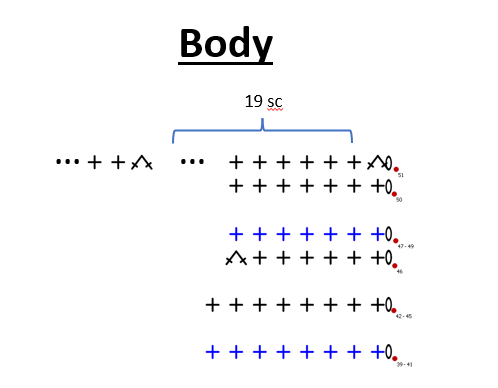
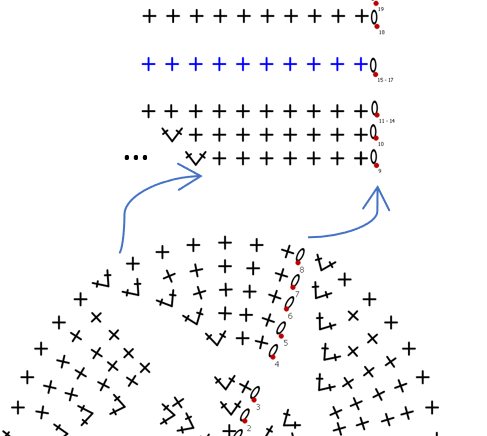
I’ve tried to use the Layer edit by creating each row in one layer, so that I could reuse the row by copying from a layer to next layer. But it did not serve much purpose to me. I can’t copy the whole pattern as a group if I will create each row in separate layer. Perhaps I may find some other use case in future that could really used the features of layering.
So much of my sharing of my experience on trying out Crochet Charts by Stitch Works Software. Hope you enjoy it. Do share with me your experience if you have used other crochet chart software.
Contact us
Welcome to a world of limitless possibilities, where the journey is as exhilarating as the destination, and where every moment is an opportunity to make your mark on the canvas of existence. The only limit is the extent of your imagination.
Thank you for your response. ✨

 Journey To Crochet
Leave a comment